Play a Sound in the Browser with p5.js
· Tutorial
➡️ Try out the sketch described in this article via the online p5.js editor here
To get started working with sound, we’re going to play the sound of a plucked string when we click anywhere in the browser window and stop the sound when we press any key.
Here is the sound:
Write some pseudocode
Before we write any computer code, let’s write an algorithm that sets out what we want to do. An algorithm is a series of steps or instructions required in order to solve a problem.
// TASK: Play a sound using p5.jsI’m typing two forward slashes before the text. This is a way of writing things in a JavaScript programme that you want the computer to ignore. We call these lines ‘comments’. You can also place multiple lines of comments between /* and */ like this:
/*
comment line 1
comment line 2
*/
The first thing we need to do is set aside some computer memory to store the sound file. Next, we need to load the sound into this memory.
We need to decide how we’re going to trigger the playback of the sound. There are many possibilities. I’m going to say that the sound will play back when I click the mouse in the browser window.
We also need to decide whether we want to be able to stop the sound before it reaches the end of the file. Again, there are many ways we could do that. I’m going to say that the sound will stop when a key is pressed.
/*
TASK: Play a sound using P5.js
1. Set aside computer memory to store the sound.
2. Load sound into memory.
3. Play sound when mouse is clicked in browser.
4. Stop sound when a key is pressed
*/
OK. That’s our programme, broken down into small steps and written in plain language. Programmers call this ‘pseudocode’. It can often be helpful to write pseudocode, before writing any computer code.
Step 1: set aside computer memory to store the sound.
We can set aside computer memory by declaring a variable, which is a sort of container for data. We can declare a variable in JavaScript with the keyword let, followed by the variable’s name, which we can invent. Let’s call it ‘monochord’ as it’s a good idea to try to be descriptive when naming variables.
let monochord;Step 2: load the sound file into memory.
To load the mp3 into memory we can write a preload() function. A function in JavaScript does something, it’s a kind of action.
let monochord;

function preload() {
//code here
}

function setup() {
// more code
}

function draw() {
// and more code
}
We open and close curly brackets as standard when we write functions. In between those brackets we need to write some more code that actually loads the sound into memory. So let’s do that.
let monochord;

function preload() {
 monochord = loadSound('monochord.mp3');
}

function setup() {
// some code
}

function draw() {
// some code
}
OK. We’ve two things here. We’ve passed the name of the mp3 file as an argument to another function, which is called loadSound(). We put the name of the mp3 file between the parentheses, in quotation marks.
The second thing we’ve done is assigned the loadSound() function to the variable called monochord. The loadSound() function is part of P5.sound.js. We can learn more about it by reading the documentation online.
Notice also that the sound file I want to play is in the same folder as the sketch.js file.
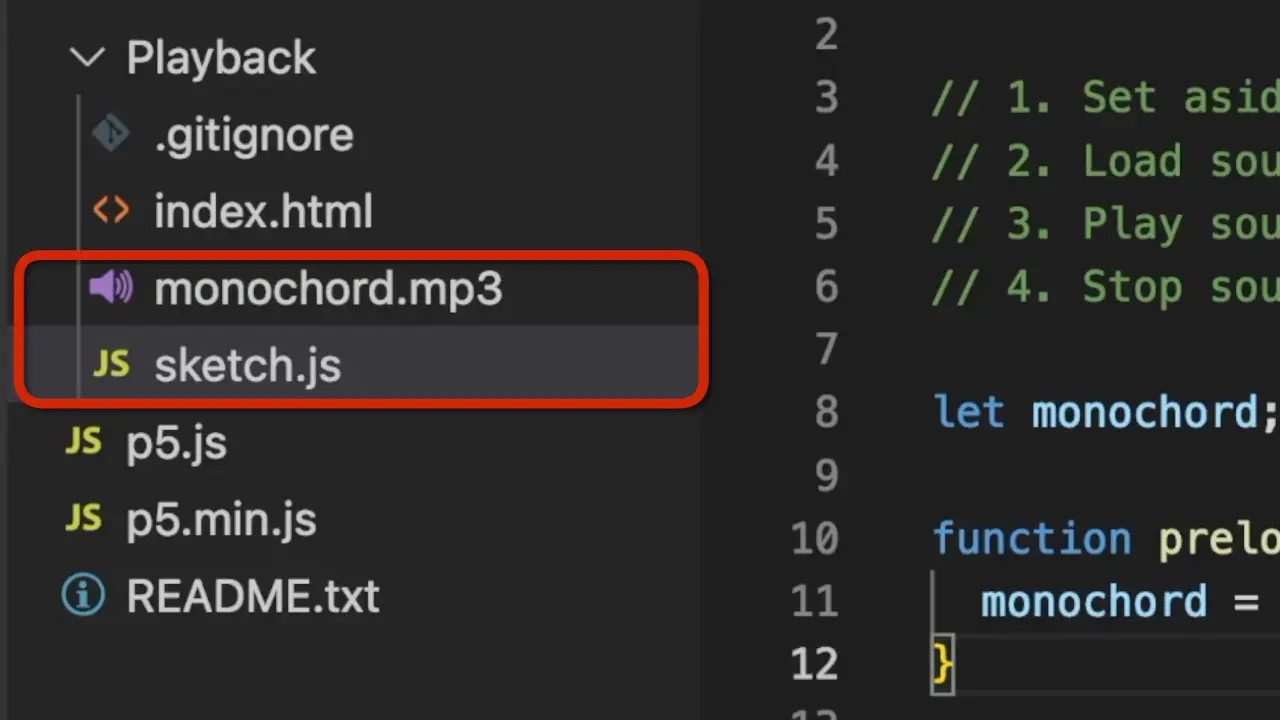
Let’s move on to Step 3 and write the code to play the sound when the mouse is clicked in browser.
Step 3: Playing the sound on mouse click
Playback in p5.sound is controlled by the play() method. A method is a type of function. We can activate this function, or ‘call’ this method, by typing monochord.play(), which calls the play() method on the monochord variable. Again, we could say that the method performs an action on the variable.
I decided that I wanted the sound to play back on clicking the browser window. We can do this using another P5 function.
let monochord;

function preload() {
    monochord = loadSound('monochord.mp3');
}

function mousePressed() {
    monochord.play();
}

function setup() {
// some code
}

function draw() {
// some code
}
Here, we’ve attached the play() method to the monochord variable in the context of a mousePressed() function.
Step 4: stop the sound when a key is pressed.
We can stop the sound by calling the .stop() method on the monochord variable in the context of a keyPressed() function.
function keyPressed() {
    monochord.stop();
}
The complete sketch
let monochord;

function preload() {
    monochord = loadSound('monochord.mp3');
}

function mousePressed() {
    monochord.play();
}

function keyPressed() {
    monochord.stop();
}

function setup() {
// some code
}

function draw() {
// some code
}
Now, if you run this programme, the audio file will run by clicking anywhere on the browser window and stop when you press any key.
👉 Click here to read Part Three in this series and learn how to manipulate sound in the browser window.
Frequently Asked Questions
-
How do I preload a sound file in p5.js?
Use the preload() function and call the loadSound() method with the file path, assigning the result to a variable.
-
How can I play a sound on a mouse click in p5.js?
Use the mousePressed() function and call the .play() method on the sound variable inside it.
-
How can I stop a sound when a key is pressed in p5.js?
Use the keyPressed() function and call the .stop() method on the sound variable inside it.
-
What is the play() method in p5.js?
The play() method starts the playback of a sound file associated with a p5.SoundFile object.
-
Where should I place my sound file in a p5.js project?
Place the sound file in the same directory as your sketch.js file or reference its relative path correctly.
-
Why should I use the preload() function to load sound files in p5.js?
The preload() function ensures that assets like sound files are loaded into memory before the sketch begins, avoiding runtime errors.
-
Can I use the same sound file for multiple actions in p5.js?
Yes, once a sound file is loaded into a variable, you can call different methods like .play(), .stop(), and .pause() on it as needed.