Getting Started with Sound in p5.js
· Tutorial
Getting started
Welcome to the first article in a series on creative sound design in the web browser using the JavaScript library, p5.js.
P5.js is a web-oriented interpretation of Processing—a Java-based language for learning how to code by creating sketches in the context of visual art and design.
JavaScript is the language of the web browser. P5.js is a JavaScript library. This means it’s a collection of pre-written computer code you can use in your web apps.
There are basically two ways you can get started coding with p5.js—either use the online editor or set up a development environment locally, on your computer, using a code editor like the free Visual Studio Code.
There is a handy guide to both approaches here on the p5.js website. This page also includes information about setting up a local server, in combination with a code editor. Setting up a local server lets you run your code in a browser and make the browser show updates every time you save any changes in your code editor.
Running p5.js locally
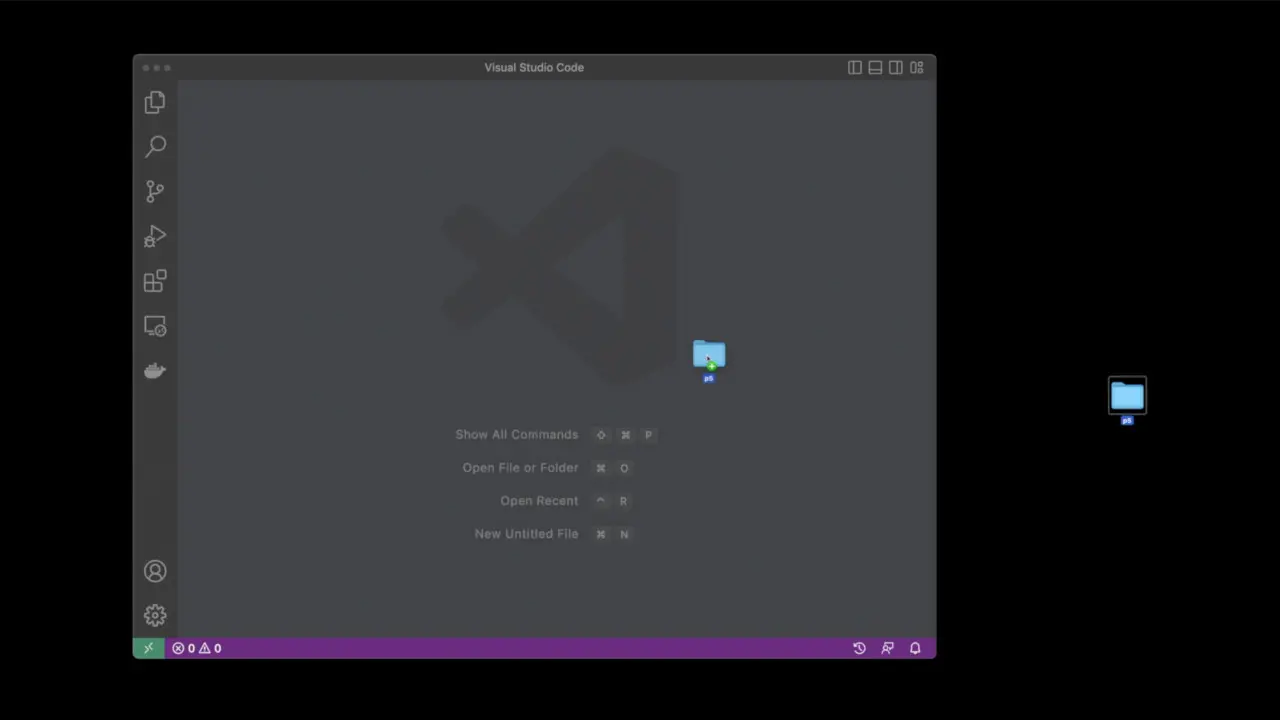
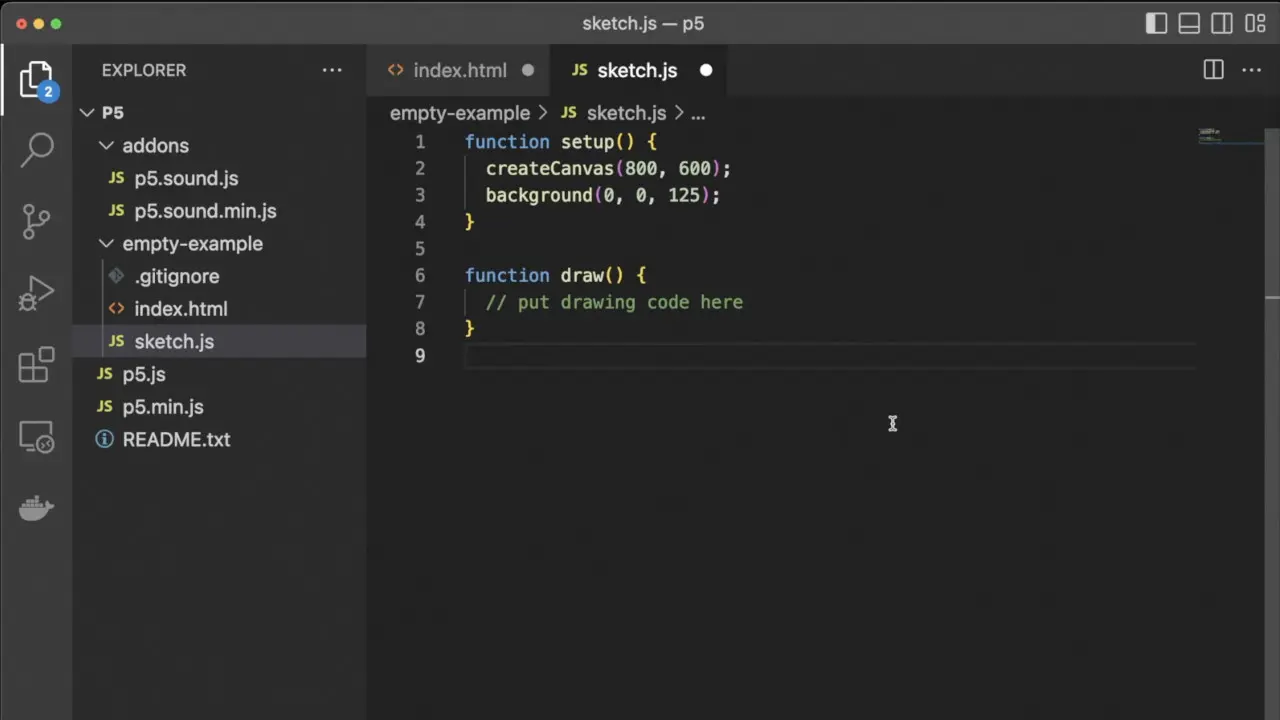
Let’s take a look at running p5.js locally. First, I download and unzip a copy of the complete p5.js library and open up Visual Studio Code. Next, I drag the p5 folder onto the main editor window.
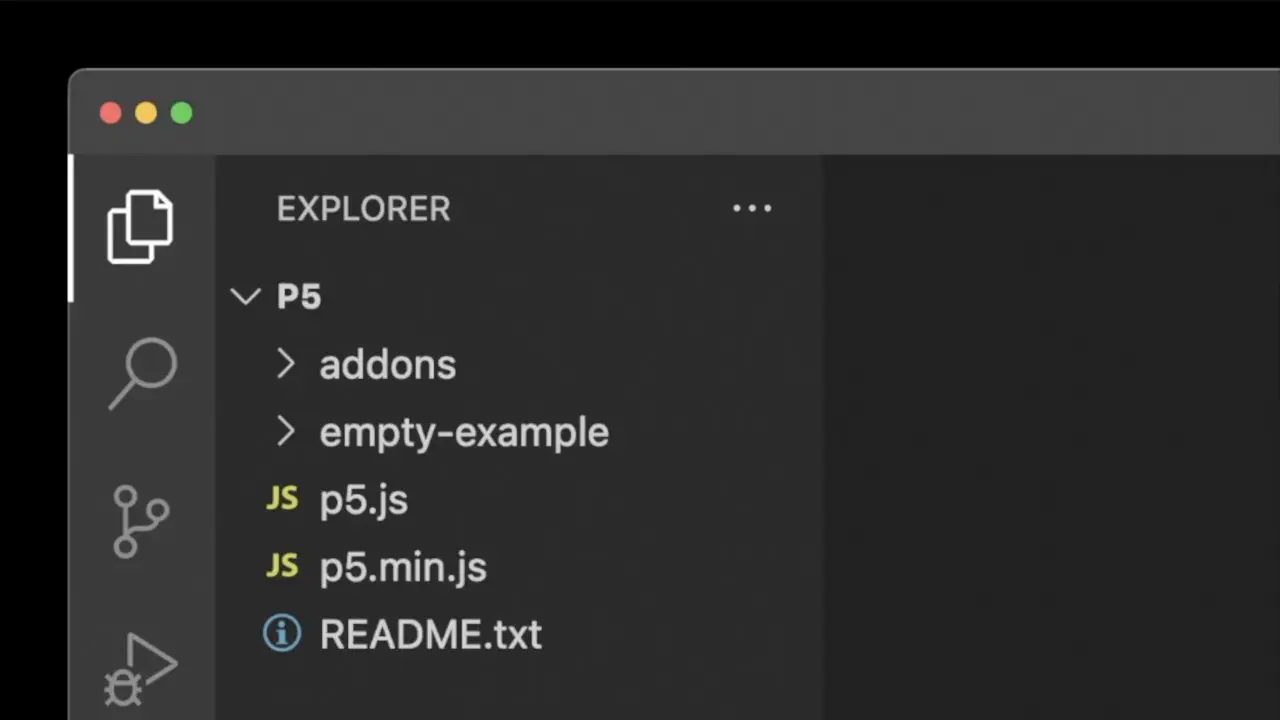
The folder and its contents are now listed in the ‘Explorer’ panel. Looking at the list of content, we see two folders (‘addons’ and ‘empty-example’), two javascript files (‘p5.js’ and ‘p5.min.js’) and a README text file. The README gives an overview of the files in the complete library download.
The p5 library
The two p5.js files provide the complete p5 library in two versions. One of these has the extension .min.js. This is a minified version of the library that is optimized to save file space. You can read more about what this ‘minimization’ means in the README.
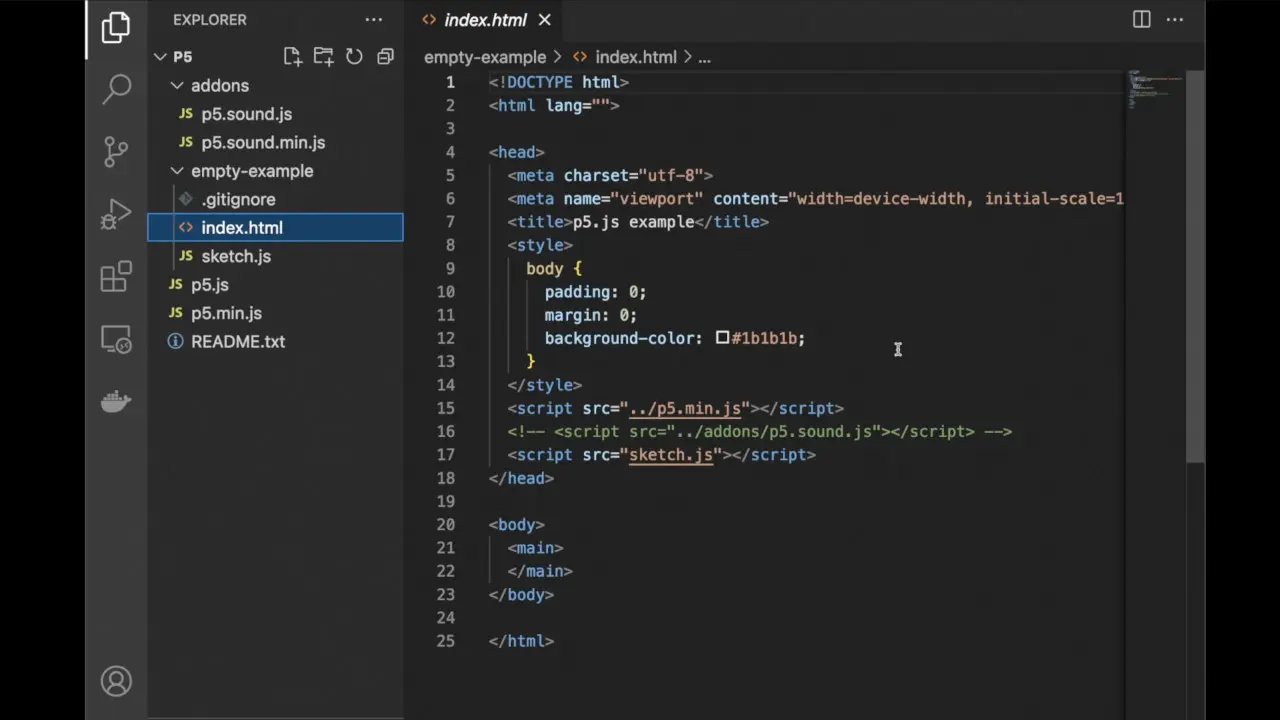
The addons folder includes the p5.sound files, which adds Web Audio functionality to p5.
The folder called ‘empty-example’ includes an index.html file, which provides some pre-written code to display and style your P5 sketch in the browser window.
Comments and relative paths
Notice that the script tag on line 16 is commented out. We need to uncomment that in order to use the sound functionality in our sketch (i.e. by removing the comment marks!).
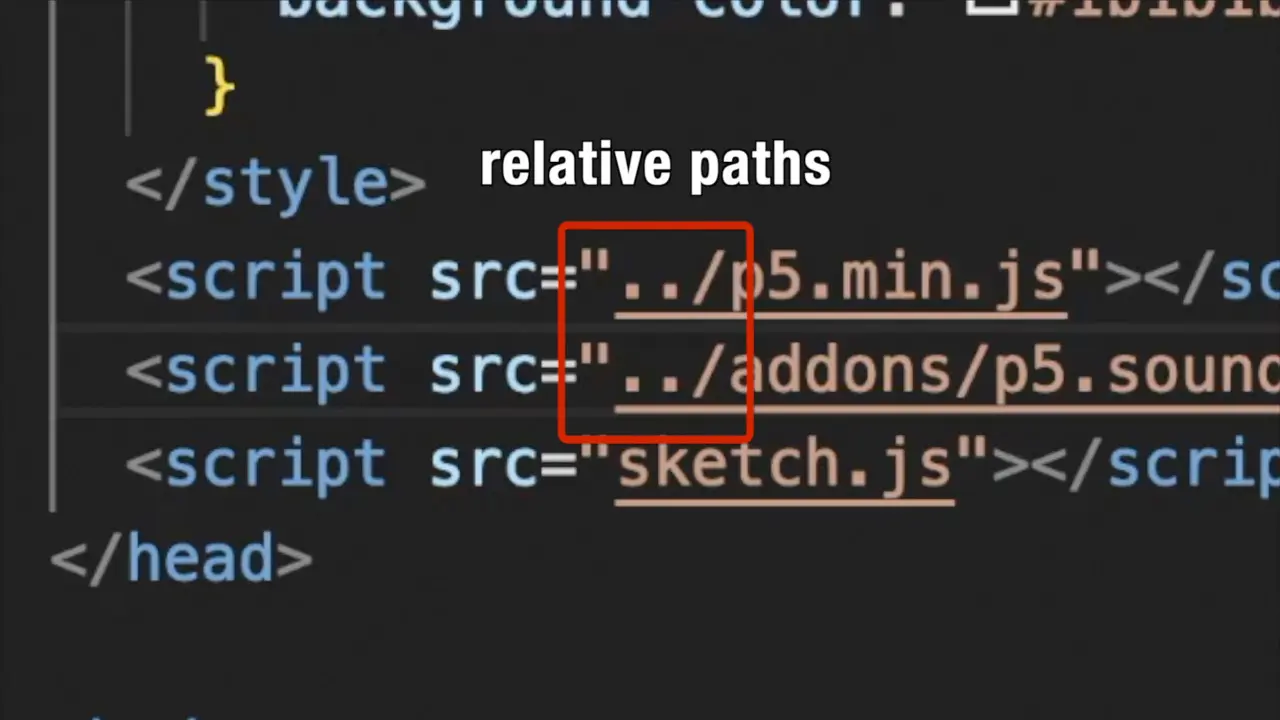
Also, notice that the html code gives relative paths (’../’) for the location of the p5 javascript library files. This means they specify the location of the file starting from the current directory location. The double dot means ‘the directory above the current directory’.
The sketch.js file
Finally, we come to the sketch.js file itself, which is where we write our JavaScript code. Let’s check everything is working by writing a few test lines, as follows:
function setup() {
    createCanvas(800, 600);
    background(0, 0, 125);
}
In line 2, we create a canvas with dimensions 800 x 600 pixels. A canvas is a designated area of the browser where our p5 sketch will be rendered.
In line 3, we give it a mid-blue background using RGB color values: Red equals zero, green equals zero, blue equals 125.
Running a live server
To see this in the browser I need to open the index.html file. This is where it’s really useful to install a live server. You can search for a live server of your choice via the ‘Extensions’ tab in VS Code.
Once a suitable live server is running and the index.html is loaded in the browser, the browser will update automatically every time changes in the code are saved.

👉 Click here to read Part Two in this series and learn how to play a sound in the browser window.
Frequently Asked Questions
-
What is p5.js?
P5.js is a JavaScript library designed for creative coding, particularly in the context of art, design, and interactive web applications.
-
How is p5.js related to Processing?
P5.js is a web-oriented interpretation of Processing, a Java-based language for learning coding through visual art and design.
-
What are the main ways to start coding with p5.js?
You can start coding with p5.js using the online editor provided on the p5.js website or by setting up a local development environment with a code editor like Visual Studio Code.
-
What is the difference between p5.js and p5.min.js?
p5.js is the full library, while p5.min.js is a minified version optimized to save file space.
-
What does the empty-example folder in the p5 library include?
It includes a basic index.html file and setup for quickly starting a p5.js sketch, along with references to the necessary JavaScript files.
-
Why is the p5.sound library useful?
The p5.sound library adds Web Audio functionality to p5.js, enabling advanced sound manipulation and audio programming in the browser.
-
How can I test that my p5.js setup is working?
Write simple test code in the sketch.js file, such as creating a canvas and setting a background color, then open the index.html file in a browser or through a live server.
-
Why is a live server recommended for p5.js development?
A live server allows your browser to automatically reload and display changes made to your code, saving time during development.